
Discord ticket bot
6
Features
3
Commands
Web
Configuration

Quick help for this module
- Tickets· Needs setup in the panel
In short
What is Discord ticket bot?
The ticket bot turns a member's request into a separate, private channel on your server — with an assigned team member, the conversation history and an archive after closing.
In an ordinary help channel, requests mix with conversation. Two people answer the same member, a third assumes somebody already took it, and a week later nobody remembers how it ended.
Ticket CRM sorts that out in the simplest possible way: one case is one channel, visible to the requester and the team. The channel has an owner, a status and a deadline, and once it closes it leaves a transcript behind — not just a memory.
Problem
What problem does this module solve?
The administrator's problem
Requests posted in ordinary channels get lost, blend into conversations and have no clear owner.
How Venon Security solves it
Ticket CRM gives every case its own private channel, assigns it to a specific person on the team and closes it with a transcript that stays in the archive.
Mechanism
How does it work, step by step?
The member picks a category from the panel
The bot posts a message with the list of categories in the channel you choose. The category decides who sees the request and what response time applies.
You define the categories yourself; each can have its own response time (SLA).
A private case channel appears
The channel lands in the open-tickets category, and its name follows the scheme you picked — after the member's name, after the case number, or both.
Naming schemes: member name, ticket number, user ID, or a mixed variant.
One specific person takes the case
Instead of collective responsibility, the request has an owner. A case can be handed to someone else when the shift changes or the topic turns out to belong elsewhere.
You point to the support roles in the Ticket CRM segment configuration.
The response time is counted from opening
Every category has a response time given in hours. Cases past their deadline show up in the SLA report — the bot does not escalate them on its own.
Default response time: 24 hours.
Closing creates a transcript
On closing, the bot assembles the whole conversation into an HTML file with authors and timestamps and sends it to the transcript channel. The case channel moves to the closed category.
Transcript mode: HTML, markdown or off.
The requester rates the service
After closing, the member receives a direct message with five rating buttons. You can export the results and see which categories cause the most trouble.
The rating is optional — the whole survey can be switched off.
Default values
What does the module start with?
- Default response time (SLA)
- 24 hours
- Service rating after closing
- on, 1–5 scale
- Transcript mode
- HTML
- Channel naming scheme
- member name + case number
- Case search retention
- 180 days
- Support roles
- empty — you choose them
Features
What does Discord ticket bot cover?
Ticket categories with their own response times
A private channel for every case
Assigning and handing over a case
An HTML transcript after closing
A 1–5 service rating
A search across closed cases
Configuration
How do you turn Discord ticket bot on?
Enable the Ticket CRM segment
Fastest from the setup wizard — the “Tickets” step turns the segment on and creates the basic structure. You can also do it by hand from the moderation screen.
Panel → Start → Setup wizard, “Tickets” step
Run the automatic channel setup
The bot creates the open-tickets category, the closed category and the transcript channel. If you already have your own structure, point to existing channels instead of creating new ones.
Panel → Moderation → Case inbox
Define the ticket categories
Three to five categories is enough to start. Too long a list makes people pick the first one they see, and you lose the very thing categories were for.
Segment configuration card → category list
Point to the support roles
They decide who sees the ticket channels and can take them over. Without them the tickets are created, but nobody outside the administrators will see them.
The “Support roles” field in the segment configuration
Set the response time and transcript mode
Set a realistic response time — an honest 48 hours beats a fictional 4. Leave the transcript on HTML unless you would rather not store conversation content.
The “Default SLA (h)” and “Transcripts” fields
Publish the ticket panel
The panel is a bot message in a channel everyone can see. Without it, a member has no way to open a case other than a command.
A command on the server, or the publish action in the panel ·
/ticket-crm
Bot permissions
Which permissions the bot needs
- Manage Channelsalways
Creates a separate channel for each ticket.
- Attach Filesonly for this feature
Saves the transcript as a file (on by default, can be turned off).
Result
What will the administrator see?
- A new channel in the open-tickets category, named according to the chosen scheme and carrying the requester's first message.
- The case owner and the response time shown in the ticket management message.
- An HTML file with the whole conversation in the transcript channel right after the case closes.
- The case channel moved to the closed category — not deleted.
- Service ratings collected from direct messages, ready to export together with the report on overdue cases.
If a ticket is created but nobody from the team can see it, the support roles are almost always the reason — without them only administrators have access.
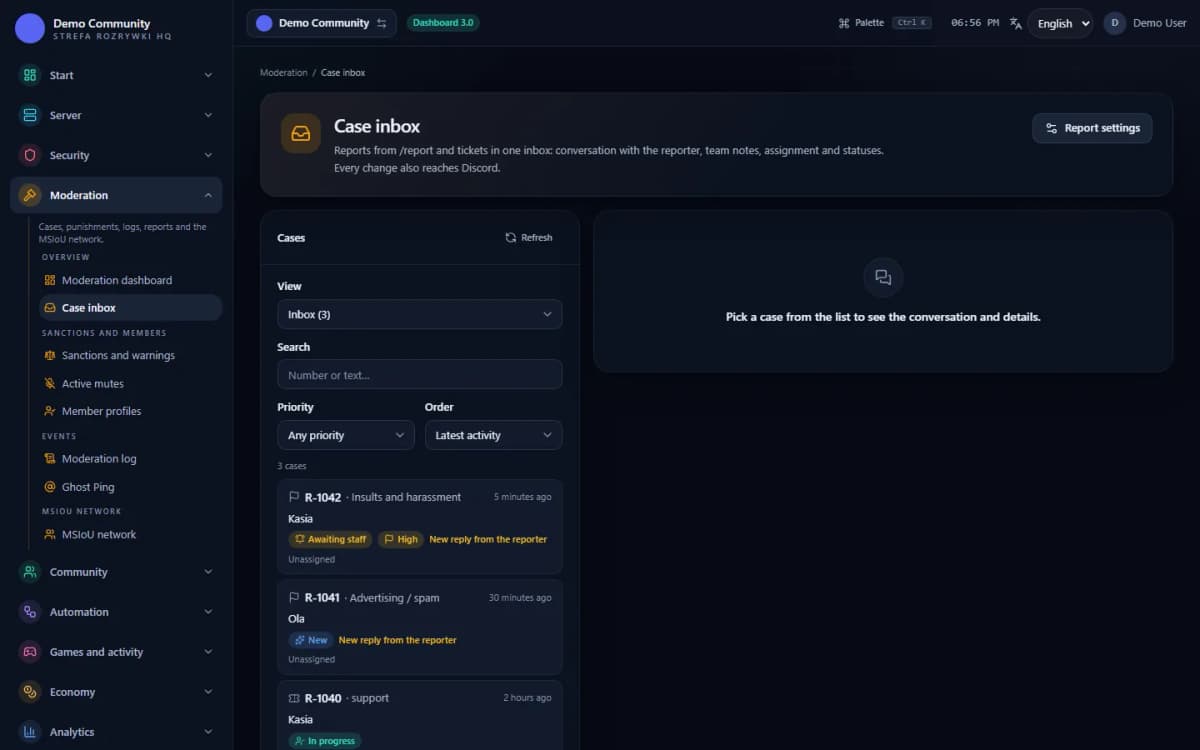 Sample data
Examples
Examples of use on a Discord server
A technical support panel with a category picker
An abuse report visible only to the moderation team
A case transcript handed over to the archive
Limits
What does Discord ticket bot not do?
It does not work outside Discord
A ticket is a channel on your server. There is no email inbox, no form on a website and no phone queue — the member has to be on the server to open a case.
It does not remind you about an overdue case
The response time is measured and displayed, but the bot does not escalate an overdue case and does not ping the team. You will find overdue cases in the report you run from the panel.
The transcript does not save attachments
The HTML file holds the message content, the authors, the timestamps and links to attachments. The files and images themselves stay on Discord — once the channel is gone, the links stop working.
It does not triage cases for you
The bot does not decide which cases matter and does not sort the queue by urgency. Priorities come from the categories you define yourself.
It will not replace agreements inside the team
The tool organises the flow, but it will not make anyone reply. A ticket with no owner sits exactly the way a request on an ordinary channel used to sit.
It will not recover a deleted channel
If someone deletes the case channel before it is closed, no transcript is created. That is why the permission to delete channels is worth keeping narrow.
FAQ
FAQ – common questions
How does a ticket differ from an ordinary request on a channel?+
A ticket is a separate, private channel visible to the requester and the support team. It has an owner, a status and a response time, and once closed it leaves a transcript behind. A request on a shared channel has none of those things.
Can tickets have different categories?+
Yes. You define the categories yourself — each can have its own response time and its own set of support roles. They decide who sees a given case. Three to five is plenty to start with.
Does Venon save a ticket transcript?+
Yes. At closing the bot assembles the conversation into an HTML file with the authors and timestamps and sends it to the transcript channel. You can switch the mode to markdown or turn it off entirely if you would rather not store the content.
Does the bot watch the response time?+
It measures and shows it, but it does not escalate on its own. Overdue cases appear in the SLA report you run from the panel. That is a deliberate decision: pinging the team on every missed deadline stops working very quickly.
What happens to the channel after a case is closed?+
It moves to the closed category rather than to the bin. You can go back to it, and the transcript is a copy rather than the only trace. A case can also be reopened.
Does the member rate the service?+
After closing they receive a direct message with five rating buttons, from 1 to 5. You can export the results and check which categories come off worst. The survey can be switched off.
Set up Discord ticket bot in Venon Security
Add the bot to your server, open the panel and configure the module together with its commands, logs and team permissions.