
Discord server backup
6
Features
3
Commands
Web
Configuration

Quick help for this module
- Backups· Works right after adding the bot
In short
What is Discord server backup?
Backup saves a snapshot of the server's roles and the bot's module configuration, so that after a change goes wrong you can return to the state that worked.
The worst damage on Discord servers is rarely done by an attack. Far more often it is done by a change made in good faith — permissions moved, a role deleted, protection thresholds zeroed out. Undoing that by hand takes hours and is never exact.
The Backup module does not try to be a copy of the whole server. It saves what makes sense and is safe to restore: roles and the bot's module configuration. The channel structure is saved along with the rest, but deliberately not restored — more on that below, in the section on the module's limits.
Problem
What problem does this module solve?
The administrator's problem
After a settings change goes wrong, or after an incident, restoring roles and configuration by hand takes hours.
How Venon Security solves it
The Backup module saves a snapshot of roles and module configuration; restoring requires confirmation and leaves behind a copy of the state from before the operation.
Mechanism
How does it work, step by step?
The copy saves roles, channels and configuration
The snapshot covers server roles with their permissions, the list of channels and the bot's module configuration: protection, XP levels, analytics and birthdays.
Copies are made by hand from the panel or by command, and automatically before restoring.
The copy gets a description and a number
You can add a short note to a copy. A month later, “before changing the AntiRaid thresholds” says far more than a date alone.
The description is at most 160 characters.
Restoring starts with a safety copy
Before anything is overwritten, the bot takes a snapshot of the current state. A restore that goes wrong can therefore be undone.
The safety copy is created automatically and marked in the history.
Roles and settings are restored
Missing roles are recreated with their saved permissions and colour. Module configuration is overwritten with the contents of the copy.
Roles that already exist are not duplicated.
The server owner approves the operation
Restoring and deleting a copy can be done only by the server owner — not by every administrator. Restoring additionally requires a confirmation describing the consequences.
The restriction is deliberate: a restore overwrites the current configuration.
The result goes into the change log
After the operation an entry remains with the number of restored roles and settings, partial errors, and the number of the safety copy.
Errors on individual roles do not abort the whole operation — they are reported separately.
Default values
What does the module start with?
- Copy scope
- roles, channels, module configuration
- Restore scope
- roles and module configuration
- Restoring channels
- off — see the limits section
- Safety copy before restoring
- created automatically
- Who can restore a copy
- the server owner only
- Copy description
- optional, up to 160 characters
Features
What does Discord server backup cover?
Copies of server roles
Copies of bot module settings
A backup history with descriptions
A safety copy before restoring
Restore available to the owner only
An entry in the change log
Configuration
How do you turn Discord server backup on?
Open the backups screen
Backups live in the Server center, in the data section — next to the change log, because both concern the history of your configuration.
Panel → Server → Backups
Make the first copy before you change anything
The best moment for a copy is a state that works. Make one right after the protection is configured, not once something has already broken.
The “New backup” card → “Create backup” button
Describe why the copy exists
The description is optional, but it decides whether you will know which copy to pick a month from now. Write the reason, not the date — the bot adds the date itself.
The “Description (optional)” field
Repeat the copy before every larger change
Before changing protection thresholds, rebuilding roles or rolling out a new module. A few seconds that save an hour of restoration.
The same screen, or a command on the server ·
/backupCheck who owns the server
Only the owner can restore a copy. If the owner account is not used day to day, it is worth knowing that before an outage rather than during one.
Discord server settings → Members
Test restoring while things are calm
Better to verify how restoring works in a quiet moment than in the middle of an incident. The safety copy is created automatically, so the test is reversible.
Backup history → restore → confirmation
Bot permissions
Which permissions the bot needs
- Manage Rolesonly for this feature
Restoring recreates roles (only those below the bot's role).
- Manage Channelsonly for this feature
Restoring recreates channels and their permissions. Creating a backup only reads.
Result
What will the administrator see?
- A new entry in the backup history with the date, the type (manual or automatic) and your description.
- A confirmation dialog before restoring, stating clearly that the current configuration will be overwritten.
- A summary after the operation: how many roles and settings were restored and how many entries reported an error.
- The number of the safety copy created automatically before restoring.
- An entry in the change log with the same summary — for the rest of the team to see.
If some roles report an error during a restore, it is almost always the hierarchy: the bot will not create a role that sits above its own.
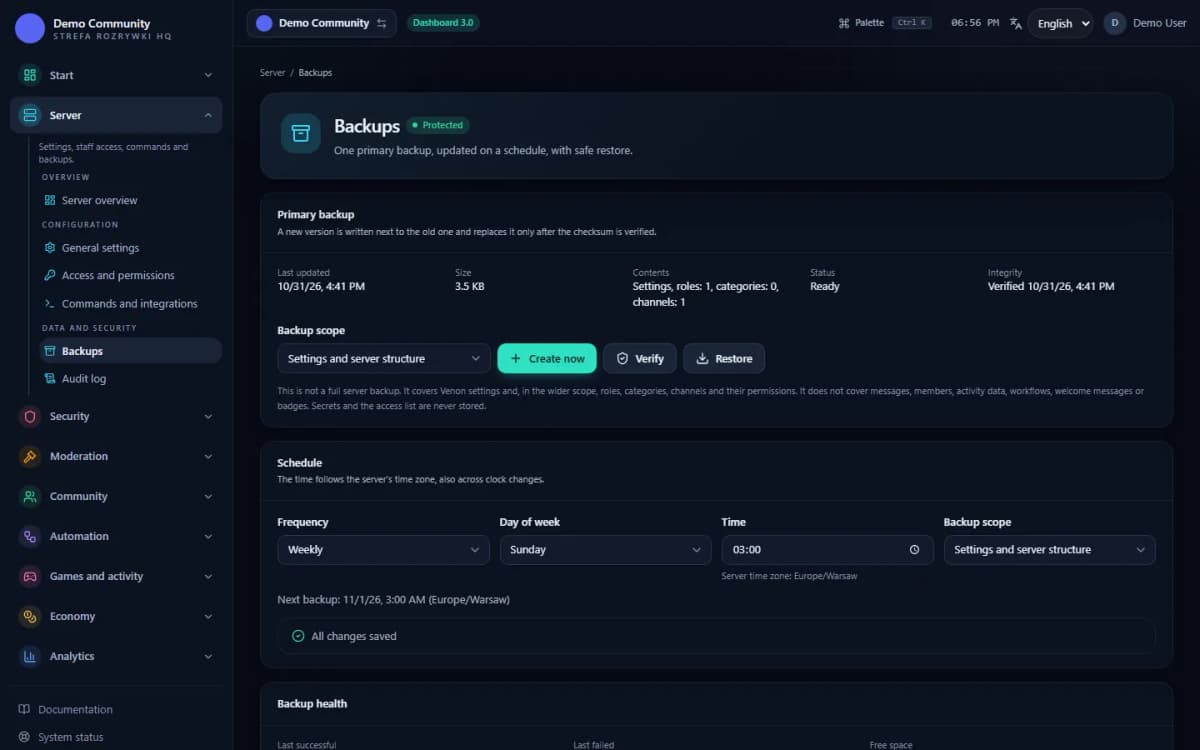 Sample data
Examples
Examples of use on a Discord server
A copy before changing protection thresholds
Going back to the configuration from before a failed change
Recreating roles deleted by mistake
Limits
What does Discord server backup not do?
It does not restore channels
This is the most important limit of the module. The channel structure is saved in the copy, but restoring it is deliberately disabled — mass-creating channels from a snapshot can do more harm than good. After losing channels you have to recreate them by hand, using the copy as an inventory.
It does not save messages
The copy covers configuration, not content. Conversation history, attachments and pinned messages are not in it and cannot be restored in any way.
It does not save members or their roles
Backup restores role definitions, but not assignments. Who had which role has to be worked out again — the module does not remember it.
It does not work without permissions and the right hierarchy
The bot will only create roles that sit below its own in the hierarchy. Higher roles report a partial error — the operation continues, but those entries have to be finished by hand.
It does not run on a schedule
Copies are created when you ask for one, and automatically before restoring. There is no recurring background backup — the regularity is up to you.
It does not replace account security
A copy helps after a configuration mistake. It will not help if someone takes over the server owner's account — there, only two-factor login on Discord and care with permissions protect you.
Instructions
Step-by-step guides
FAQ
FAQ – common questions
What exactly does a Discord server backup in Venon save?+
Roles with their permissions and colours, the list of channels and the bot's module configuration: VenonSec protection, XP levels, analytics and birthdays. The copy contains no messages and no role assignments to specific people.
Will restoring a copy recreate deleted channels?+
No. Channels are saved in the copy, but restoring them is deliberately disabled — mass-creating channels from a snapshot can be more dangerous than the loss itself. The copy then serves as an inventory you rebuild the structure from by hand.
Who can restore a backup?+
The server owner only — not every administrator. The operation additionally requires confirmation in a dialog describing the consequences, because a restore overwrites the current module configuration.
Is restoring reversible?+
In practice, yes. Before anything is overwritten, the bot creates an automatic copy of the current state and gives you its number in the summary. If you are not happy with the result, you restore that copy.
When is the best time to back up a server?+
Right after the configuration starts behaving the way you want, and then before every larger change: protection thresholds, role structure or a new module rollout. The module does not create scheduled automatic copies.
Why were some roles not restored?+
The bot only creates roles that sit below its own in the hierarchy. Higher roles report a partial error visible in the summary — the operation continues, and those entries have to be finished by hand.
Set up Discord server backup in Venon Security
Add the bot to your server, open the panel and configure the module together with its commands, logs and team permissions.