
Discord reaction roles
6
Features
3
Commands
Web
Configuration

Quick help for this module
- Role panels· Needs setup in the panel
Where to configure
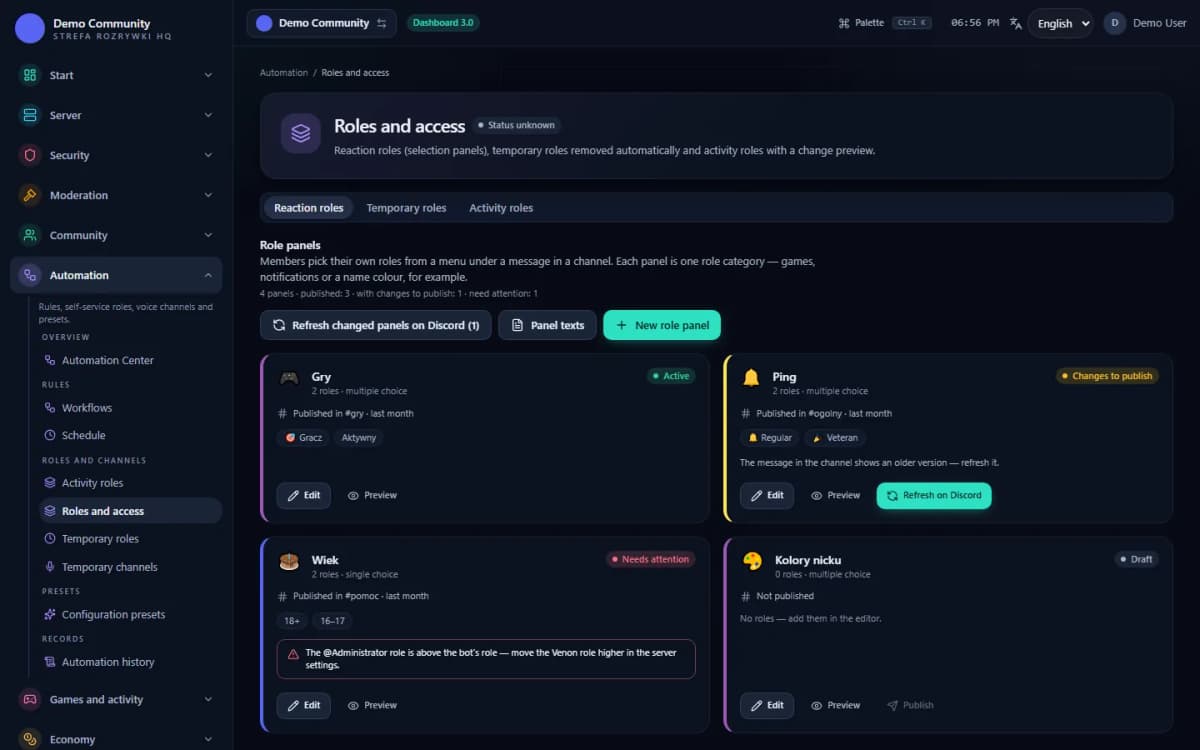
- Automation → Roles and access
Commands
No dedicated commands — everything is configured in the panel.
Common problems
Related features
In short
What is Discord reaction roles?
The role panel is a bot message members pick their roles from — and you decide which roles are on offer and whether someone can take one or several at once.
The name “reaction roles” goes back to the days when a role was granted by adding an emoji reaction under a message. Venon does it in a more modern way: the panel is a message with components, so the choice reads well on a phone and the bot does not have to track every reaction on the server.
For the member the result is the same — one click and the role is granted or removed. The difference is on the staff side: roles are grouped into categories, each with its own selection mode and its own panel in a channel of your choice.
Problem
What problem does this module solve?
The administrator's problem
Handing out interest and access roles by hand is monotonous, and in a larger community it is simply impossible.
How Venon Security solves it
The role panel lets members pick roles themselves, while the staff keeps control over which roles are on offer at all.
Mechanism
How does it work, step by step?
You create a role category
A category is one panel: it has a name, an emoji and a selection mode. Themes make a good split — games, notifications, nickname colours.
Modes: multiple choice, or single choice within the category.
You add roles with labels
Every role gets its own label and emoji shown in the panel. The role name on the server can stay technical — the member sees what you typed.
Roles managed by integrations are filtered out of the picker.
You publish the panel in a channel
You point to a channel and the bot sends the panel message there. Changing the category's contents updates the existing panel — there is no need to publish it again.
The panel is a bot message, so you can move it by publishing to a different channel.
The member picks, and changes their mind
A click grants the role, another click removes it. In a single-choice category, taking a new role automatically removes the previous one.
Granting and removing happen immediately, with no confirmation.
Temporary roles disappear on their own
A separate mechanism grants a role on join and removes it after a set time. Useful for welcome roles and temporary access.
The time is set in hours, from 1 to 8760 (a year).
Features
What does Discord reaction roles cover?
Role categories, each with its own panel
Single or multiple choice
Labels and emoji next to roles
Publishing the panel in a chosen channel
Temporary roles removed automatically
A view of active temporary assignments
Configuration
How do you turn Discord reaction roles on?
Open the self-service roles screen
Panel roles and temporary roles live together in the Automation center, because both are about granting roles without a moderator.
Panel → Automation → Roles and access
Create a category and pick a mode
Multiple choice for interests and notifications, single choice where the roles are mutually exclusive — nickname colours, for example.
The “New role category” card → Name, Emoji, Selection mode
Add roles with readable labels
The label is all the member sees. It is worth making it sound like a description rather than an identifier from a permission system.
Category card → Role, Label, Emoji
Publish the panel in a channel
Pick a channel visible to everyone who should use the panel. Without publishing, the category exists only in the configuration.
The publish action on the category → channel picker
Check the bot's role hierarchy
The bot will only grant roles that sit below its own in the hierarchy. This is the most common reason for a panel that looks right but does nothing.
Discord server settings → Roles
Bot permissions
Which permissions the bot needs
- Manage Rolesalways
Gives and removes roles on reaction — only those below the bot's role.
Result
What will the administrator see?
- The panel message in the chosen channel — with the labels and emoji you set yourself.
- The role appearing next to the member's name immediately after the click.
- A list of active temporary assignments showing when each of them expires.
- An entry in the “Roles” log category, if it has a channel assigned.
 Sample data
Examples
Examples of use on a Discord server
A panel with game and interest roles
Picking one nickname colour from a category
A newcomer role that disappears after a week
Limits
What does Discord reaction roles not do?
It will not grant a role above its own
A Discord limitation. The bot's role has to sit above every role the panel is meant to grant — otherwise the click has no effect.
It does not replace verification
The role panel is for optional roles. The access role granted on joining comes from the Verify module, which first checks that there is a human on the other side.
It does not check who it gives a role to
Anyone who can see the panel can take a role from it. If a role grants real permissions, restrict who can see the panel's channel — the panel itself has no access conditions.
It does not work through emoji reactions
Despite the popular name, roles here come from message components, not from adding a reaction. Old reaction-based panels have to be rebuilt as categories.
FAQ
FAQ – common questions
Does Venon grant roles through emoji reactions?+
No — despite the established name, roles are picked from message components, meaning buttons and a select menu. It reads better on a phone and does not require the bot to track every reaction on the server.
Do reaction roles replace Verify?+
No. Verify grants the access role after checking that there is a human on the other side. The role panel handles optional roles — interests, notifications, colours. Two different layers.
Can the choice be limited to one role per category?+
Yes. A category can run in single-choice mode — then taking a new role automatically removes the previous one from the same category. Useful for nickname colours and regional roles.
Why does clicking in the panel do nothing?+
Almost always the role hierarchy: the bot's role has to sit above the role it is meant to grant. Check as well that the bot has the Manage Roles permission.
Can a role disappear by itself after a while?+
Yes, but that is a separate mechanism — temporary roles. The role is granted on join and removed after the set number of hours. You can see the active assignments on the same panel screen.
Set up Discord reaction roles in Venon Security
Add the bot to your server, open the panel and configure the module together with its commands, logs and team permissions.