
Discord statistics bot
6
Features
3
Commands
Web
Configuration

Quick help for this module
- Analytics center· Works right after adding the bot
Where to configure
- Analytics → Analytics Center
Commands
- /analityka
- /statystyki
- /venonstats_panel
Common problems
Related features
In short
What is Discord statistics bot?
Statistics show what really happens on your server: how many members there are, how many messages appear, when people are active, and which channels are alive rather than just taking up space.
Running a server without data is guesswork. A tech channel looks dead, and it turns out it has steady traffic at hours nobody on the staff thinks about. Or the other way round — the channel considered the heart of the community only produces traffic when three specific people are around.
Venon collects this data from the moment the bot joins and presents it in a form you can actually read: a few key numbers at the top, channel and member rankings below, an hourly heatmap alongside. Without that, any conversation about changing the server ends in somebody's opinion.
Problem
What problem does this module solve?
The administrator's problem
Without data, decisions about channels, events and moderation rest on impressions — and impressions are usually wrong.
How Venon Security solves it
The analytics panel shows the real traffic on your server: how many people write, when they write, where, and how that changes over time.
Mechanism
How does it work, step by step?
The bot records events as they happen
Messages, joins and leaves, time in voice channels and command usage land in the statistics the moment they occur.
Counting starts when the bot joins — there is no historical data.
The key numbers on one screen
Member and online counts, messages today and in total, people in voice right now, and today's joins and leaves.
The Analytics → Analytics Center screen.
Channel and member rankings
A list of the busiest channels and the most active members shows where the conversation actually happens.
Rankings are computed from recorded events, not from a sample.
A day and hour heatmap
A grid showing when, on which days and at which hours, the server is alive. The simplest tool for planning events and moderation shifts.
Hover over a cell to see the exact message count.
Alerts about unusual events
Analytics picks up deviations from the usual rhythm and reports them as alerts you can acknowledge and clear.
Alerts are information, not action — nothing is executed automatically.
Features
What does Discord statistics bot cover?
Key server indicators
The busiest channels and members
Voice channel activity
An hour and weekday heatmap
Alerts about unusual events
In-depth reports
Configuration
How do you turn Discord statistics bot on?
Open the analytics center
The basic indicators are available right after the bot joins — nothing has to be switched on to see the first numbers.
Panel → Analytics → Analytics Center
Give the bot a few days
The heatmap and trends need data. On day one you see the current state; meaningful conclusions appear after a week.
The same screen, Overview tab
Check the statistics from the server
Some of the data is available without opening the panel — handy when you want to show the numbers to someone mid-conversation.
A command on the server ·
/statisticsLimit access to the data
If the statistics should only be visible to the staff, set the command permissions. The panel already requires signing in with administrator permissions.
Panel → Server → Commands and integrations
Bot permissions
Which permissions the bot needs
- Manage Channelsonly for this feature
Voice channel counters change the channel name.
- Manage Rolesonly for this feature
The role for the weekly top member — when you set one.
Result
What will the administrator see?
- Four key indicators at the top of the screen: members, messages today, people in voice, joins and leaves.
- A ranking of the busiest channels and members with the numbers, not just the order.
- An activity heatmap split by weekday and hour.
- A message chart for the last few days showing the trend, not a single point.
- A list of alerts about unusual events that can be acknowledged and cleared.
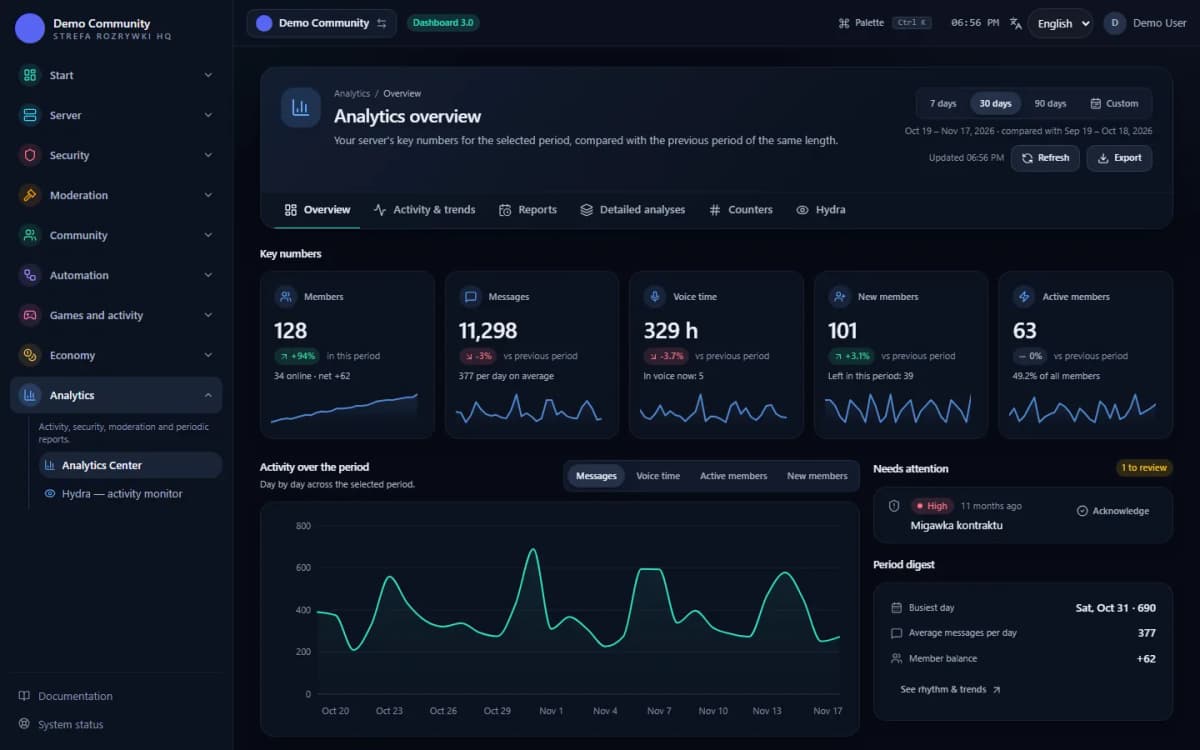 Sample data
Examples
Examples of use on a Discord server
Picking an event time from the heatmap
Comparing traffic on two topic channels
Spotting an activity drop after a structure change
Limits
What does Discord statistics bot not do?
It does not know the history from before installation
Counting begins on the day the bot joins. Traffic from earlier months cannot be reconstructed, because Discord does not expose that data.
It does not count time when the bot was offline
Events from a downtime are not recorded. After a longer outage the chart shows a dip that does not match reality.
It does not read conversation content
Statistics work on numbers — who, where and when. There is no topic analysis and no sentiment.
It does not make decisions
Alerts report a deviation from the norm but execute nothing. What to do about activity halving remains a question for a human.
FAQ
FAQ – common questions
What data do Venon's statistics show?+
Member and online counts, messages today and in total, voice channel activity, joins and leaves, rankings of the busiest channels and members, and an activity heatmap split by day and hour.
Are the statistics visible to everyone?+
The panel requires signing in with a Discord account and administrator permissions on that server. Access to the statistics commands can be separately limited to chosen roles in the command settings.
From when is the data counted?+
From the moment the bot joins the server. History from before installation cannot be reconstructed — Discord does not expose that data to any bot.
What is the activity heatmap good for?+
Planning, mostly. It shows at which hours and on which days the server is genuinely alive, so it helps you pick the time for an event, an announcement or a moderation shift.
Does the bot react to a drop in activity by itself?+
No. Analytics reports deviations from the usual rhythm as alerts you can review and acknowledge. The decision to act belongs to the staff.
Set up Discord statistics bot in Venon Security
Add the bot to your server, open the panel and configure the module together with its commands, logs and team permissions.