
Verify Discord – member verification on your server
4
Verification modes
1 click
Automatic setup
5 min
Challenge validity
account age
An extra condition

Quick help for this module
- Verification (Verify)· Needs setup in the panel
In short
Why have verification on Discord?
Verify is one action required of a new person before they enter the server — once they do it, the bot grants the role that opens the rest of the channels.
Without verification every account — a freshly created bot included — lands straight on the channels and can write immediately. That is the cheapest attack scenario there is: a script and a list of servers is enough. Verification ruins that economy, because it demands something an automated account cannot do for free.
Verify Discord is also the simplest protection module to roll out. One click in the panel creates the channel and the role, a second one publishes the verification panel. Everything else — the challenge mode, the minimum account age, the welcome message — is tuning.
Modes
Four ways to verify and one extra condition
Image captcha (the default)
The bot generates an image with a five-character code and asks for it to be typed into a modal. The most effective mode against simple bots.
An arithmetic problem
A random addition of two numbers from 1 to 10. Lighter than a captcha and readable on a phone, but easier to automate.
Copying a word
The member copies one of the short control words. A compromise between convenience and a barrier to entry.
One click
Instant verification: clicking a button grants the role. It will not stop a bot, but it tidies up the entrance and forces a deliberate action.
Minimum account age
An independent condition checked before the challenge. Accounts younger than the number of days you set go no further — whichever mode you picked.
A direct message after verification
An optional DM with your own text and placeholders for the member, the server and the granted role — a good place for the rules and the first steps.
Mechanism
What happens between joining and being granted the role
A new member sees only the entry channel
You limit access to the rest of the server with Discord's channel permissions. Verify grants the role that opens that access — channel visibility itself stays in the server settings.
Automatic setup in the panel creates the channel and the role for you.
They click the button in the verification panel
The panel is a message published by the bot in the channel you chose. Clicking it starts the challenge for the selected mode.
If you set a verification channel, the button works only there.
The bot checks the account age
Before any challenge appears, the minimum account age condition is checked. An account that is too fresh is refused, with a note about how many days are missing.
The condition is off by default (0 days).
The member solves the challenge
A captcha, an arithmetic problem or copying a word — in a modal visible only to them. The answer is compared without regard to letter case.
The challenge expires after 5 minutes; after that they start again.
The bot grants the access role
After a correct answer the role is assigned immediately. Someone who already has the role is told they are verified and does not take the challenge again.
Requires the “Manage Roles” permission and the bot's role higher in the hierarchy.
It optionally sends a welcome message
If you enable the DM after verification, the member receives the text you prepared, with placeholders the bot replaces with the server name, the mention and the granted role.
The DM will not reach people who have closed messages from server members.
The specifics
The Verify module's default settings
- Verification mode
- image captcha
- Captcha code length
- 5 characters
- Time to solve the challenge
- 5 minutes
- Minimum account age
- off (0 days)
- Verification channel and role
- to be chosen — the module will not start without them
- DM after verification
- optional, with your own template
- Verifying again
- not possible once the role is granted
Configuration
How to set up verification on Discord, step by step
Open the Onboarding and verification screen
Verify lives in the Community centre together with welcomes and starter roles, because for a new person that is one sequence of events.
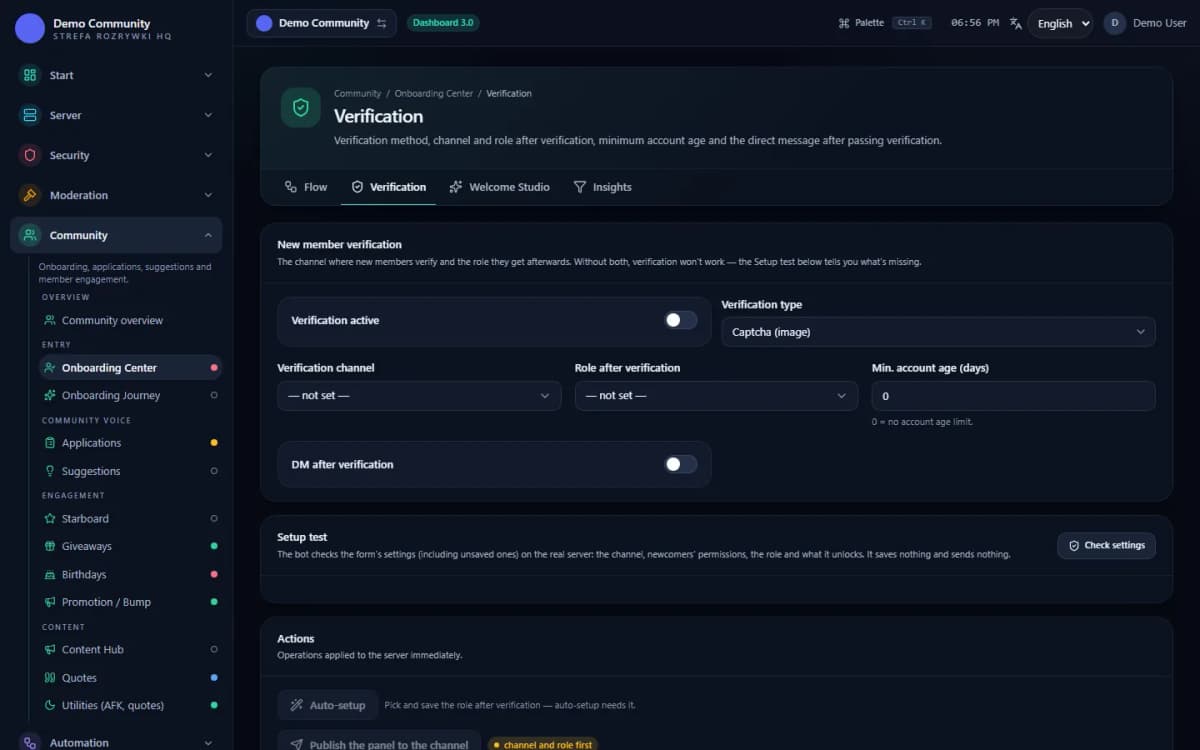
Panel → Community → Onboarding and verification (
/community/onboarding)Click “Automatic setup”
One button creates the verification channel and the access role with sensible permissions. You can also point to an existing channel and role by hand if you already have your own structure.
The “Actions” card → the Automatic setup button
Pick a verification mode
A captcha for servers exposed to bots, a click for communities that only want the rules acknowledged. You can change the mode at any time without losing the people already verified.
Fields: Verification active, Verification type, Verification channel, Role after verification
Set the minimum account age
The simplest barrier against accounts created for a single attack. A value of 7 days filters out most throwaway alts and rarely gets in the way of real members.
The “Min. account age (days)” field
Publish the panel in a channel
Without this step there is nothing to click. The publish button only becomes active once the channel and the role are set.
The “Actions” card → the “Publish the panel in a channel” button
Check the role hierarchy
This is behind almost every “Verify is not granting the role” report. The bot's role has to sit above the granted role in the tree, and the bot needs the Manage Roles permission.
Discord server settings → Roles → drag the bot's role above the access role
Bot permissions
Which permissions the bot needs
- Manage Rolesalways
Gives the role once verification is passed.
- Attach Filesonly for this feature
The image captcha sends a picture with the code.
Result
What the administrator sees when Verify fires
- The verification panel as a bot message in the chosen channel — with the button that starts the challenge.
- The access role appearing next to the member's name the moment their answer is correct.
- An entry in the role logs, if the “Roles” category has a log channel assigned.
- Unique-entry statistics on the same screen: how many people came in, how many of them are returns.
- An error message for the member when the module is not configured — instead of silence and a button that does nothing.
The best test is your own second account: if the role does not appear after a correct answer, the problem is the role hierarchy, not the module.
 Sample data
Limits
What Verify does not do
It does not hide the channels for you
Verify grants a role. What that role opens follows from the channel permissions in Discord's settings. If the channels are visible to @everyone, verification closes nothing.
It does not confirm identity
A captcha checks whether there is a human on the other side, not who that human is. Verification knows nothing about age, country, or whether the person was already banned on the server under another account.
It will not stop a determined person
Someone who copies the code by hand gets through. Verify raises the cost of entry for automated accounts and casual alts — it is not an impassable barrier.
It does not tighten itself during an attack
The verification mode and the account age stay as they are until you change them. During a raid it is AntiRaid that raises the alarm and limits the traffic; tightening the entrance is a separate, manual decision.
It will not DM everyone
Only someone who accepts direct messages from server members will receive the message after verification. Discord does not allow that to be worked around and does not report it as an error.
It does not work without a channel and a role
If either is missing, the button answers with a not-configured message. That is deliberate: a silent failure of the entry gate would be worse than a plain error.
Verify is the first layer, not the only one. An account that passes the gate is still subject to AutoMod and LinkShield, while the join rate across the whole server is watched by the Discord AntiRaid bot. Only together do they make up layered protection, in which every layer catches what the previous one let through.
You set the channel, the role, the mode and the welcome message in the Discord bot dashboard. Typical role-hierarchy problems are described in the help centre.
FAQ
FAQ – common questions
Why have verification on Discord?+
Verification is the server's first gate. Before a new account sees the channels it has to perform a deliberate action — copy a code from an image, solve a simple sum or click a button. That filters out the bots and throwaway accounts behind most spam and raids.
Which verification modes does Venon Security have?+
Four: an image captcha (the default, a five-character code), a simple arithmetic problem, copying a short word, and one-click verification. Whichever mode you pick, you can add a minimum account age condition, checked before the challenge.
Does Venon grant the role automatically after verification?+
Yes, the moment the answer is correct. The conditions are that the bot's role sits above the granted role in the hierarchy and that the bot holds the Manage Roles permission. Someone who already has the role is told they are verified and does not take the challenge again.
Verify is not granting roles — what should I check?+
The hierarchy first: Venon's role has to sit above the role being granted. Then the Manage Roles permission. Finally the module's configuration — whether verification is on and whether the channel and role are set in the panel. Without a channel and a role, the button answers with a not-configured message.
How long does a member have to solve the captcha?+
Five minutes. After that the challenge expires and the button has to be clicked again — the code from the previous attempt stops being valid.
Does verification protect against raids?+
It stops simple bots and throwaway accounts, so it cuts off the cheapest form of attack. It does not replace AntiRaid, though: a determined attacker will copy the code by hand. Verify and AntiRaid are two different layers — the gate at the entrance and the rate counter inside.
Instructions
Step-by-step guides
See also
Related pages
Put up the verification gate before the first bot walks in
Add Venon Security, click automatic setup, publish the panel and check the result on your own second account.