
Discord bot dashboard – the Venon Security control panel
69
Module screens
55+
Slash commands
8
Themed centres
0s
Changes without a restart
In short
What is a Discord bot dashboard?
The dashboard is a page where you sign in with your Discord account and set everything the bot should do on your server by clicking — no commands, no configuration files and no restart.
Configuring a bot through commands alone works while there is one administrator and five settings. With a bigger team the problem starts: nobody remembers which threshold is set, who changed it, or why that value.
The Discord bot dashboard solves that differently from a list of commands in the documentation. Every module has its own screen with fields, switches and a view of the current state, and every change stays in the log. The panel is wired to the running bot, so you are not working on a mock-up — what you save happens on the server.
Structure
The eight centres the panel is divided into
Server
General settings, panel access, command permissions, backups and the change log. This is where you decide who can change anything at all.
Security
The protection overview with the percentage of active safeguards, raid protection, accounts and risk, content protection and emergency mode.
Moderation
Warnings, mutes, reports and Ticket CRM, logs, member profiles and the cross-server MSIoU network — in the tabs of one screen.
Community
Onboarding and verification, welcomes, applications, suggestions, the starboard, giveaways, birthdays and posts from YouTube, Twitch or RSS.
Automation
The rule builder, self-service and temporary roles, reminder schedules, on-demand voice channels and configuration presets.
Games and activity
XP levels with activity paths, reputation and seven minigames sharing one leaderboard.
Analytics
Server KPIs, the busiest channels and members, an activity heatmap, in-depth reports and the activity monitor.
Setup wizard
An eight-step rollout with real actions: it enables modules with the recommended settings instead of only describing them.
Mechanism
What happens when you click “Save”
You sign in with your Discord account
The panel has no passwords of its own. Authorisation goes through Discord OAuth, and the session is signed and expires — there is no permanent access without signing in.
The panel and the API are marked noindex, so they do not appear in search results.
You see only the servers you manage
The server list comes from your Discord account. You can configure the ones where you hold administrator permissions — or the ones where the owner gave you operator access.
Delegating access by Discord ID: the Server → Access and permissions screen.
The change goes to the bot's API, not to a file
Every form saves through the running bot's API. The panel does not edit the configuration on the side — which is why what you see after saving is the real state, not a copy.
Saving is manual, with the state visible and the option to discard changes before confirming.
The bot applies the setting without a restart
Thresholds, switches and lists are read as it goes. There is no window in which protection is off because the bot is reloading.
The exception is one-off operations, such as publishing a panel — those run on demand.
One-off operations have their own buttons
Verify's automatic setup, publishing a panel, creating a backup or repairing channels are actions, not settings. Each shows its result, and an error if it fails.
An action that failed says so plainly — instead of reporting success without doing the job.
The change stays in the log
The Change log screen shows who changed what and when. With an administrative team that is often more important than the ability to make the change.
The Server → Change log screen.
Configuration
How to start using the panel
Add Venon to your server
The invite grants the bot the permissions it needs for moderation and role management. Without them some panel screens will save settings the bot cannot carry out.
The “Add to your server” button on this page
Sign in to the panel
Go to the login page and pick your Discord account. After authorisation you see the list of servers where you hold administrator permissions.
venon-sec.xyz/loginGo through the setup wizard
Six steps check the language, time zone, commands, access, backups and server readiness. You enable optional modules one at a time, with recommended settings, and see the result right away.
Panel → Start → Setup wizard
Check your protection level
The Protection overview screen shows the percentage of active safeguards and lists the dormant systems. It is the fastest answer to “have I turned everything on yet”.
Panel → Security → Protection overview
Give the rest of the team access
Discord administrators have access automatically. People without administrator permissions can be given operator access by Discord ID, without touching the roles on the server.
Panel → Server → Access and permissions
Make a backup
Before you start experimenting with thresholds, save the configuration that works. A copy with a description is far easier to recognise later than a date alone.
Panel → Server → Backups
Result
What the administrator sees in the panel
- The percentage of active safeguards on the Protection overview screen, computed from the real configuration switches.
- A list of dormant systems — precisely what is lowering the protection level, with a link to the right screen.
- A visible save state on every form: what you changed, whether the save succeeded and how to discard the changes.
- Entries in the change log: who changed what in the panel's configuration, and when.
- Live server data: member count, messages today, people in voice channels, joins and leaves.
If a screen returns an error instead of data, check first on the status page whether the bot is online at the moment.
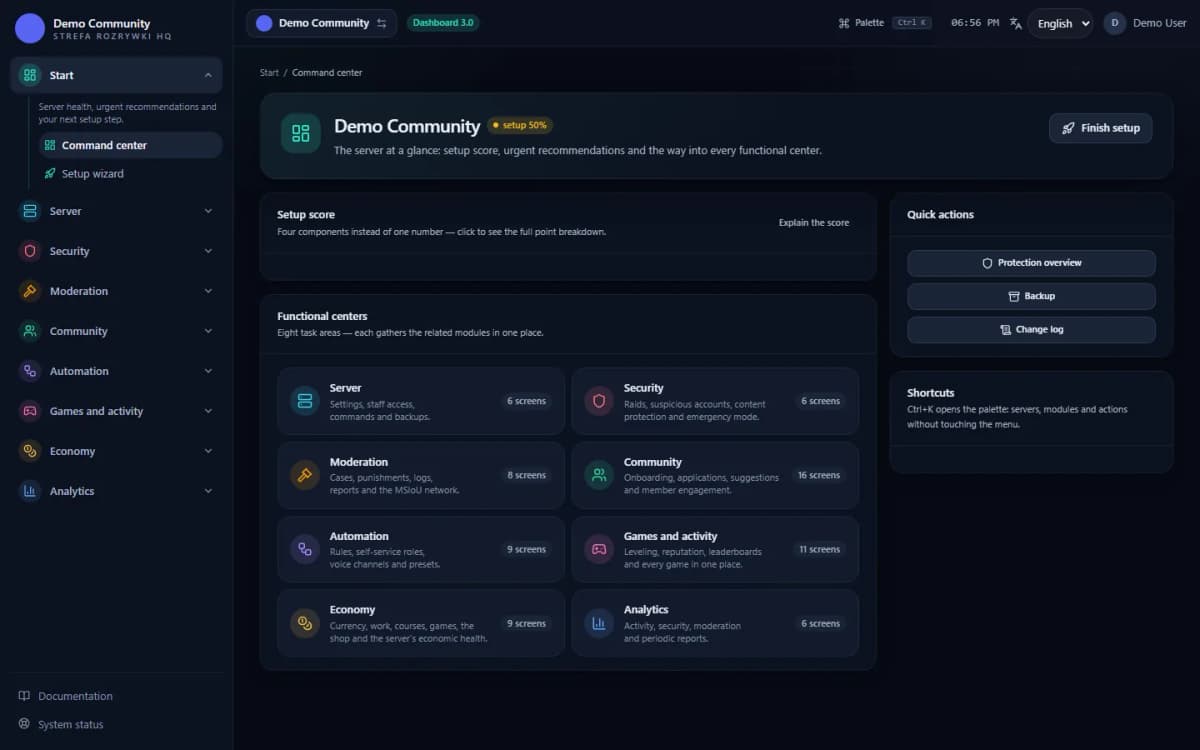 Sample data
Limits
What the dashboard does not do
It will not work while the bot is offline
The panel reads and writes through the running bot's API. When the bot does not answer, the screens show an error instead of pretending the save succeeded — that is deliberate, because a quiet false success is worse than a visible failure.
It does not get around Discord's permissions
You can save a setting in the panel that the bot cannot carry out, if it lacks the permission or its role sits too low in the hierarchy. The panel saves the configuration; execution depends on Discord.
It is not public
The panel requires signing in with a Discord account and administrator permissions on that server. There is no read-only view for ordinary members and no public link to the configuration.
It does not replace every command
Some operations only make sense on the server — penalising a specific person, opening a ticket or checking a profile is done with a command. The panel covers configuration and review, not day-to-day moderation.
It does not restructure your server for you
Apart from clearly marked actions (Verify's automatic setup, publishing a panel) the panel does not create channels or move roles around. Changing a setting is changing a setting — not rebuilding the server.
It will not show data the bot never collected
Statistics and leaderboards count from the moment the bot was added. History from before the install does not exist, and no screen will reconstruct it.
Day-to-day protection settings — AntiRaid, AutoMod, Verify and LinkShield — are handled in the same, consistent interface, with the same saving rules and the same change log.
If you would rather start from commands, the full list with the permissions is in the Venon Security command catalogue. The panel and the commands operate on the same configuration — two entrances to one bot, not two separate worlds.
FAQ
FAQ – common questions
What is the Discord bot dashboard in Venon Security?+
It is a web panel where you configure the whole bot: protection, moderation, community, automation, games and analytics. Instead of remembering commands and their parameters you click through forms — and the changes go straight to the running bot.
How do I sign in to the dashboard?+
Through Discord OAuth — the panel has no passwords of its own. Once signed in you see the servers where you hold administrator permissions. The panel reads only your basic profile and the server list; it does not read your messages.
Do changes in the panel require restarting the bot?+
No. The bot reads the configuration as it goes, so changing an AntiRaid threshold, an AutoMod rule or the Verify mode applies from the next check. There is no window in which protection is off.
Can I give panel access to someone without administrator permissions?+
Yes. On the Server → Access and permissions screen you add operators by their Discord ID. They gain access to the panel without gaining administrator permissions on the Discord server itself.
What happens when the bot is offline?+
The panel shows an error on the screen whose data it could not fetch, rather than displaying empty or invented values. Saving fails as well and says so clearly — there is no quiet pretence of success.
Is the dashboard secure?+
Access is protected by a session and by signing in through Discord, and administrative operations require the right permissions on the server. The panel and the API are marked noindex, so they do not reach search engines. Every configuration change stays in the change log.
Instructions
Step-by-step guides
See also
Related pages
Run the whole server from one panel
Add Venon Security, sign in with your Discord account and go through the setup wizard: six basic steps and modules you enable deliberately.