
Discord moderation logs
6
Features
4
Commands
Web
Configuration

Quick help for this module
- Moderation logs· Needs setup in the panel
Where to configure
- Moderation → Moderation log
Commands
No dedicated commands — everything is configured in the panel.
Common problems
Related features
In short
What is Discord moderation logs?
Moderation logs are a record of what happens on the server — penalties, deleted messages, role and channel changes — routed to separate channels visible only to the team.
Discord keeps its own audit log, but it is thin: it does not show the content of a deleted message, it disappears after a while, and it cannot be split across channels. In a dispute or an appeal against a penalty, that is usually not enough.
Venon keeps its own logs in twelve categories, and you route each one to a channel of your choice. Moderation does not mix with technical server changes, and the people responsible for a given area see what concerns them.
Problem
What problem does this module solve?
The administrator's problem
Without logs there is no way to settle who deleted a message, who issued a penalty and when the server configuration changed.
How Venon Security solves it
Venon records twelve categories of events in the channels you choose, so after an incident you can reconstruct what happened instead of relying on someone's memory.
Mechanism
How does it work, step by step?
The event is assigned to a category
Every event has a fixed category: moderation, deleted messages, roles, channel edits, invites, voice, reactions, ghost pings, errors and others.
Twelve categories, each can be switched off separately.
It lands in the channel assigned to that category
A category with no channel assigned has nowhere to write the event. That is the most common cause of “the logs are not working” while the module is on.
You assign channels separately for each category.
Penalties additionally get a case number
Warnings, mutes, kicks and bans create an entry in the case register with a number, a reason and the person who issued it. The entry stays regardless of the log channel.
You browse cases in the moderation center and with the history commands.
Access can be limited to one role
Log channels can be closed to everyone except a chosen role. The bot sets the permissions itself, removing access from @everyone along the way.
The “Viewer role” field in the Moderation log, Log channels tab.
Panel changes have their own journal
Logs on Discord describe what happens on the server. Who changed the bot's configuration and when is recorded by a separate change log in the panel.
The Server → Audit log screen.
Default values
What does the module start with?
- Number of log categories
- 12
- Categories enabled after install
- all
- Category channels
- unassigned — you choose them
- Viewer role
- none (channels inherit permissions)
- Moderation case register
- works independently of the log channels
Features
What does Discord moderation logs cover?
Twelve event categories
A separate channel per category
Access limited to one role
Automatic creation of log channels
Numbered moderation cases
A change log in the panel
Configuration
How do you turn Discord moderation logs on?
Open the log settings
Logs live in the moderation center, in a tab of their own alongside the remaining registers.
Panel → Moderation → Moderation log → Log channels
Create the channels with one click, or point to your own
The automatic setup creates the full set of channels and assigns them to the categories right away. If you already have your own structure, assign existing channels by hand.
The automatic setup action on the logs screen
Start with three categories, not twelve
Moderation, deleted messages and roles are enough to begin with. Turning everything on at once produces a wall of messages nobody reads.
The category switches on the logs screen
Limit access to the team role
Point to the role that should see the log channels. The bot removes access from @everyone and grants it to that role — no manual clicking through permissions.
Panel → Moderation → Moderation log → Log channels → Viewer role
Check that recording works
Warn yourself and delete a message. If there are no entries, the category has no channel assigned or the bot cannot post in it.
A command on the server ·
/warn
Bot permissions
Which permissions the bot needs
- View Audit Logalways
Finds out who did something — without it an entry shows the effect but not who did it.
- Manage Channelsonly for this feature
When you create the log channels from the panel.
Result
What will the administrator see?
- A message in the category channel describing the event: who, what, when and — for penalties — why.
- The content of a deleted message together with its author and channel, provided the deleted-messages category is on.
- A case number on every penalty, which leads to the full history in the moderation center.
- A specific person's penalty history, available from their member profile in the panel.
- An entry in the change log when someone on the team changed the bot's configuration in the panel.
No entries while the module is running usually means one of two things: the category has no channel assigned, or the bot lacks permission to post in it.
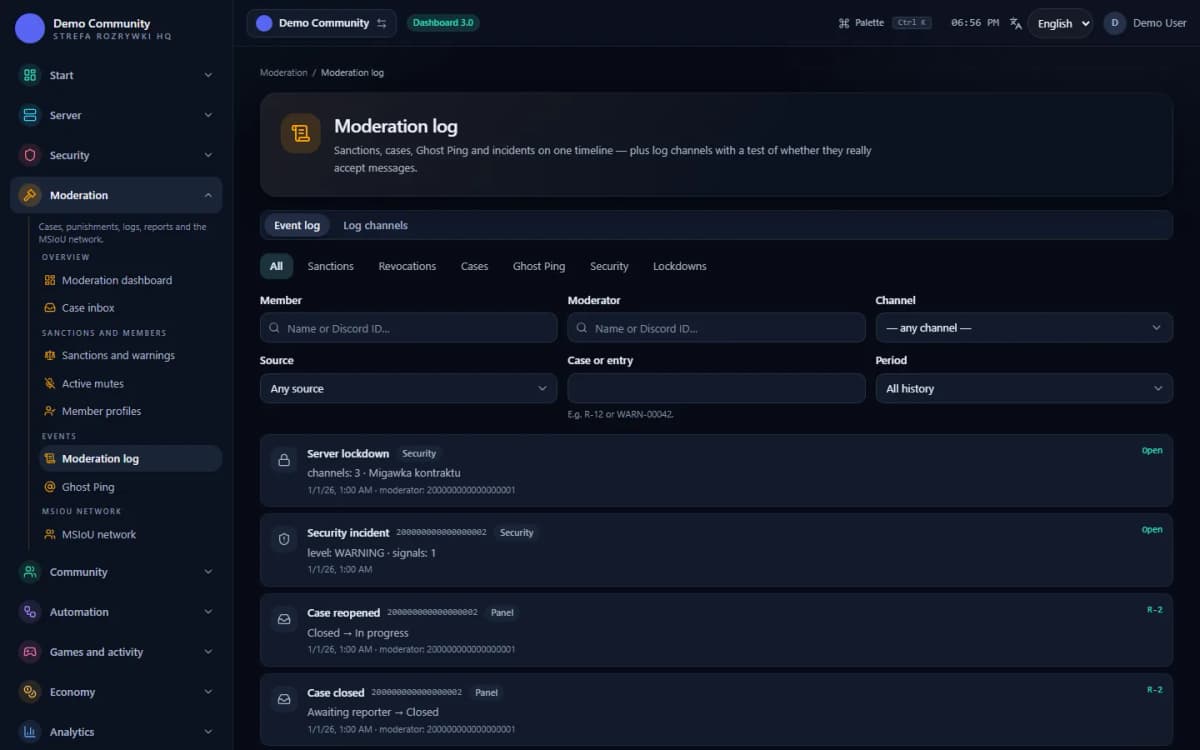 Sample data
Examples
Examples of use on a Discord server
Checking who issued a ban and why
Recovering the content of a deleted message
Establishing who changed a channel's permissions
Limits
What does Discord moderation logs not do?
It does not see what happened before installation
Logging begins the moment the bot is added and the categories are switched on. Events from before that cannot be reconstructed — not from Venon and not from Discord.
It cannot record a message it never saw
The bot can show the content of a deleted message only if it received it first. Messages from before the bot started, or from a downtime, are gone.
It does not replace Discord's audit log
Some changes — especially those made by other bots and integrations — Venon only knows as far as Discord reveals them. In a serious incident it is worth checking both sources.
It does not protect logs from someone with permissions
Whoever can delete messages in the log channel can also delete the evidence. Log channels are best kept with narrow access and without delete rights for ordinary moderation.
It does not analyse or judge
Logs are a record, not an alerting system. The bot will not tell you that someone is issuing suspiciously many penalties — you have to look for that yourself or use the analytics.
It has no infinite history
Entries last as long as the channel and its messages do. If you have archiving requirements, plan for them separately in a retention policy.
FAQ
FAQ – common questions
Which events does Venon record in the logs?+
Twelve categories: general, moderation, errors, roles, deleted messages, voice channels, server changes, channel edits, new invites, deleted invites, reactions and ghost pings. You switch each category on separately and route it to a channel of your choice.
Are logs needed on a small server?+
Yes, because even a two-person team needs one shared version of events. In a dispute about a penalty, or when someone asks “who deleted this”, the log is the only answer that does not rest on memory.
Will Venon show the content of a deleted message?+
Yes, if the deleted-messages category is on and has a channel assigned, and the bot saw the message before it was removed. Messages from before the bot joined cannot be recovered.
Who can see the log channels?+
You decide. In the settings you point to an access role, and the bot removes access from @everyone and grants it to that role. Without it, the channels inherit the permissions of the category they were created in.
How do logs differ from the change log in the panel?+
Logs describe events on the Discord server: penalties, messages, roles, channels. The change log describes who changed the bot's configuration in the panel and when. Two different questions, two different places.
Why is nothing arriving in the log channel?+
Most often the category has no channel assigned, or the bot lacks permission to send messages there. Check both, then perform a test action — warn yourself, for instance.
Set up Discord moderation logs in Venon Security
Add the bot to your server, open the panel and configure the module together with its commands, logs and team permissions.